
Online Hindi Excel Editor
Create and edit Hindi spreadsheets in your browser.
Supports KrutiDev 010, Devlys 010, Mangal Fonts, formula calculations, and XLSX export.
Launch the advanced spreadsheet editor with typical Excel features.
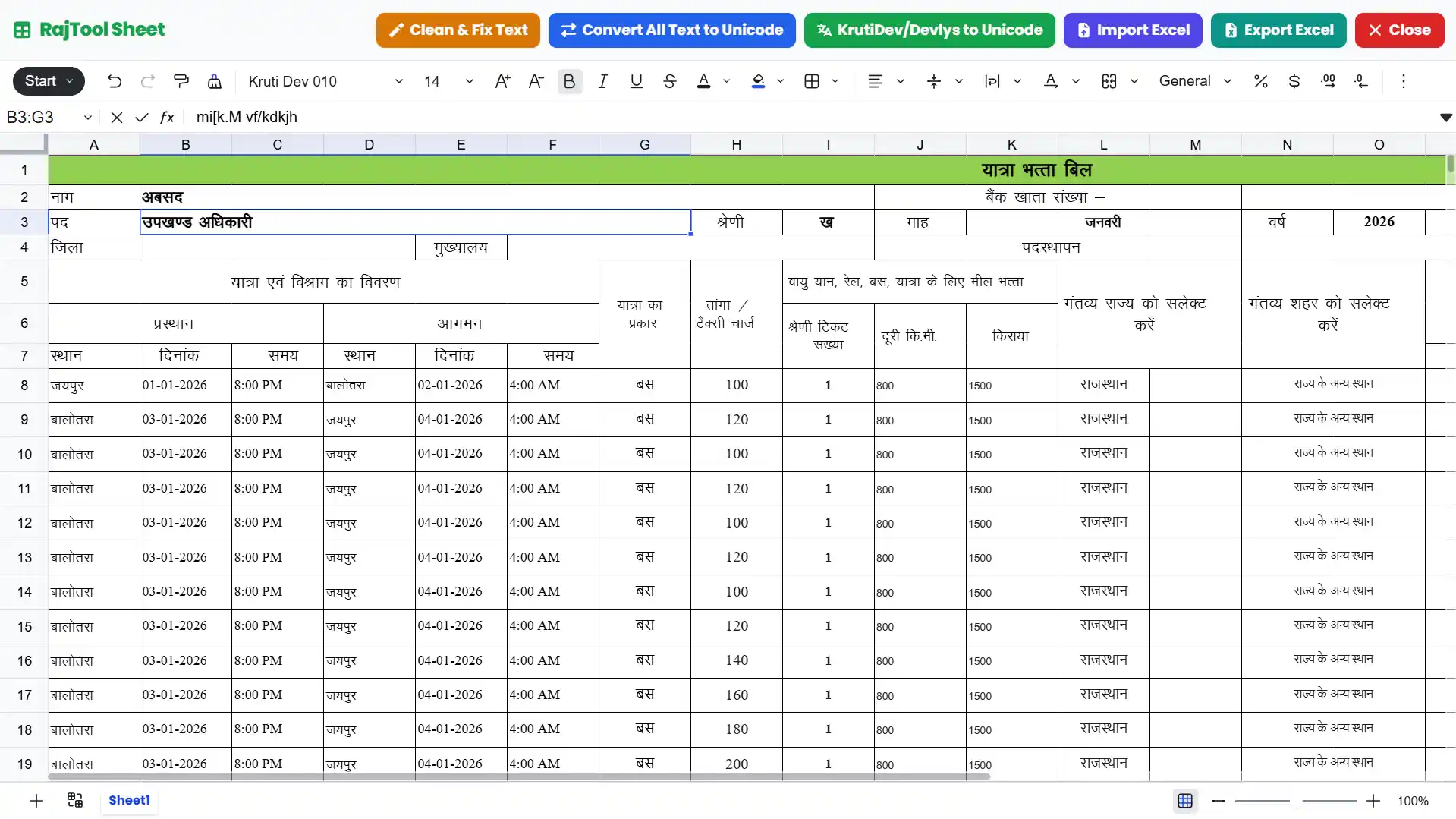
Create and Edit Excel Sheets using KrutiDev and Devlys Fonts
Working with Hindi data in standard spreadsheet software like Google Sheets or
most other online Excel editors is often frustrating.
Text written in legacy Hindi fonts such as KrutiDev 010 or
Devlys
frequently appears as unreadable or “garbage” text because these platforms are designed
primarily
for Unicode fonts.
As a result, matras (vowels) may look broken, character order gets disturbed, and files copied
from
government-format Excel sheets often include unwanted or hidden spaces that affect readability.
In offline Excel, KrutiDev works only after manually installing fonts on the system.
RajTool Hindi Excel Editor removes this dependency by providing a browser-based
spreadsheet
where KrutiDev, Devlys, and Unicode fonts are preinstalled and work
consistently across devices,
without any local setup.
Key Features of Hindi Excel Editor
Hindi Font Supported
Type directly in KrutiDev 010, Devlys 010, Mangal & Unicode. Perfect for government formats.
Fix Extra Spaces
One-click clean for unwanted spaces. Ideal when pasting data from old Excel sheets or PDFs.
Import Existing Excel
Open .xlsx files with merged cells, formatting, and formulas intact. Supports Hindi documents.
Export Without Formatting Loss
Download edited sheets with layout, borders, merged cells, and fonts safe.
Professional Cell Styling
Customize fonts, colors, borders, and alignment. Use Gridlines & Frozen Panes to manage large datasets easily.
Advanced Formula Engine
Supports 300+ functions including Math, Statistical, Text & Date. Formatting for Currency, Percentage & more.
RajTool Editor vs. Standard Excel
Why switch from Google Sheets or Office 365? Because they aren't designed for Hindi legacy fonts.
RajTool Editor
🏆 Best for Hindi- Native KrutiDev Support: No font installation needed. Types exactly as it prints.
- Perfect Matras: No broken vowels or disjointed characters.
- Remington Layout: Works with standard government exam typing layouts.
Standard Excel
- Font Hell: Requires manual font installation on every device.
- Web Compatibility: KrutiDev often renders as "Garbage English Text" in browsers.
- Formatting Loss: Paste operations often strip special Hindi formatting.
Step-by-Step: How to Use this Hindi Spreadsheet
- Open the Editor: Click the large "Open Excel Editor" button above.
- Choose Font: By default, it supports Unicode. To type in KrutiDev, simplify ensure you have your system keyboard set or use our Hindi Word Editor for drafting.
- Import Data: Go to
Importto upload any existing .xlsx file. - Clean Data: Use the
Cleanuptool to remove extra spaces often found in govt files. - Export: Save your work as a standard Excel file or PDF easily.
For Government Exams
This tool is perfect for aspirants practicing for CPCT, SSC, or State Typing Exams. The interface mimics the actual exam environment where Remington Gail or KrutiDev layouts are mandatory. Practice spreadsheet formulas like SUM, AVERAGE, and VLOOKUP directly in Hindi context.
Master Keyboard Shortcuts
Use Excel-style keyboard shortcuts for blazing fast Hindi typing and data entry.
| Action | Shortcut |
|---|---|
| 1. Common Editing Shortcuts | |
| Undo | Ctrl + Z |
| Redo | Ctrl + Y |
| Cut | Ctrl + X |
| Copy | Ctrl + C |
| Paste | Ctrl + V |
| 2. Sheet Navigation & View | |
| Select cell above | ↑ / Shift + Enter |
| Select cell below | ↓ / Enter |
| Select right cell | → / Tab |
| Select left cell | ← / Shift + Tab |
| Select all cells | Ctrl + A |
| 3. Selection Expansion | |
| Expand selection | Shift + ↑ ↓ ← → |
| Select cell with value | Ctrl + ↑ ↓ ← → |
| Expand to gap | Ctrl + Shift + ↑ ↓ ← → |
| 4. Zoom Controls | |
| Zoom in / out | Ctrl + + / - |
| Reset zoom | Ctrl + 0 |
| 5. Sheet Editing | |
| Edit / Toggle Edit | F2 / Enter |
| Clear & Edit | Backspace |
| Bold / Italic / Underline | Ctrl + B / I / U |
| Strike through | Ctrl + Shift + X |
| Insert new line | Alt + Enter |
| Toggle Filter | Ctrl + Shift + L |
| Quick Sum | Alt + = |
| 6. Find & Replace | |
| Find / Replace | Ctrl + F / H |
| Next / Prev Match | Enter / Shift + Enter |
| 7. Global Shortcut | |
| Toggle shortcuts panel | Ctrl + \ |
